Real-time Order Notifications
Enabling Shopee’s Push Mechanism allows Shopee to send immediate notifications to Prism Order whenever a new order is placed, a tracking number is generated, or a return is requested. Without this, orders will still synchronize via scheduled polling, but notifications may be delayed by several minutes.
Step 1: Copy Live Push Key & Enter Webhook URL
- In the Shopee Open Platform console, navigate to App List → your app → Push Mechanism.
- Copy the Live Push Partner Key. (You will need to paste this in Prism Order during the next onboarding step).
- Under Live Push, enter the following URL into Live Call Back URL:
https://prismorder.com/api/shopee/webhook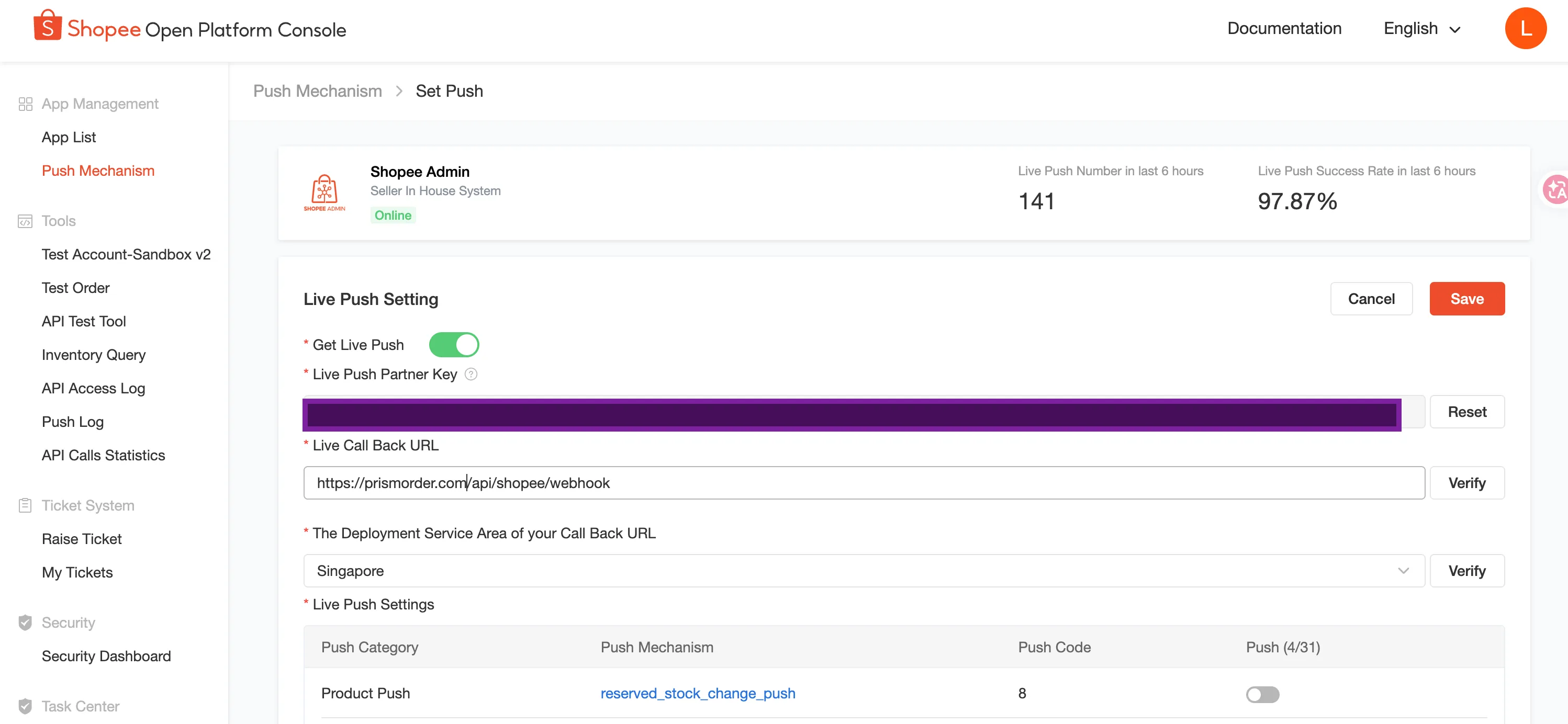
Step 2: Enable the 3 Required Push Events
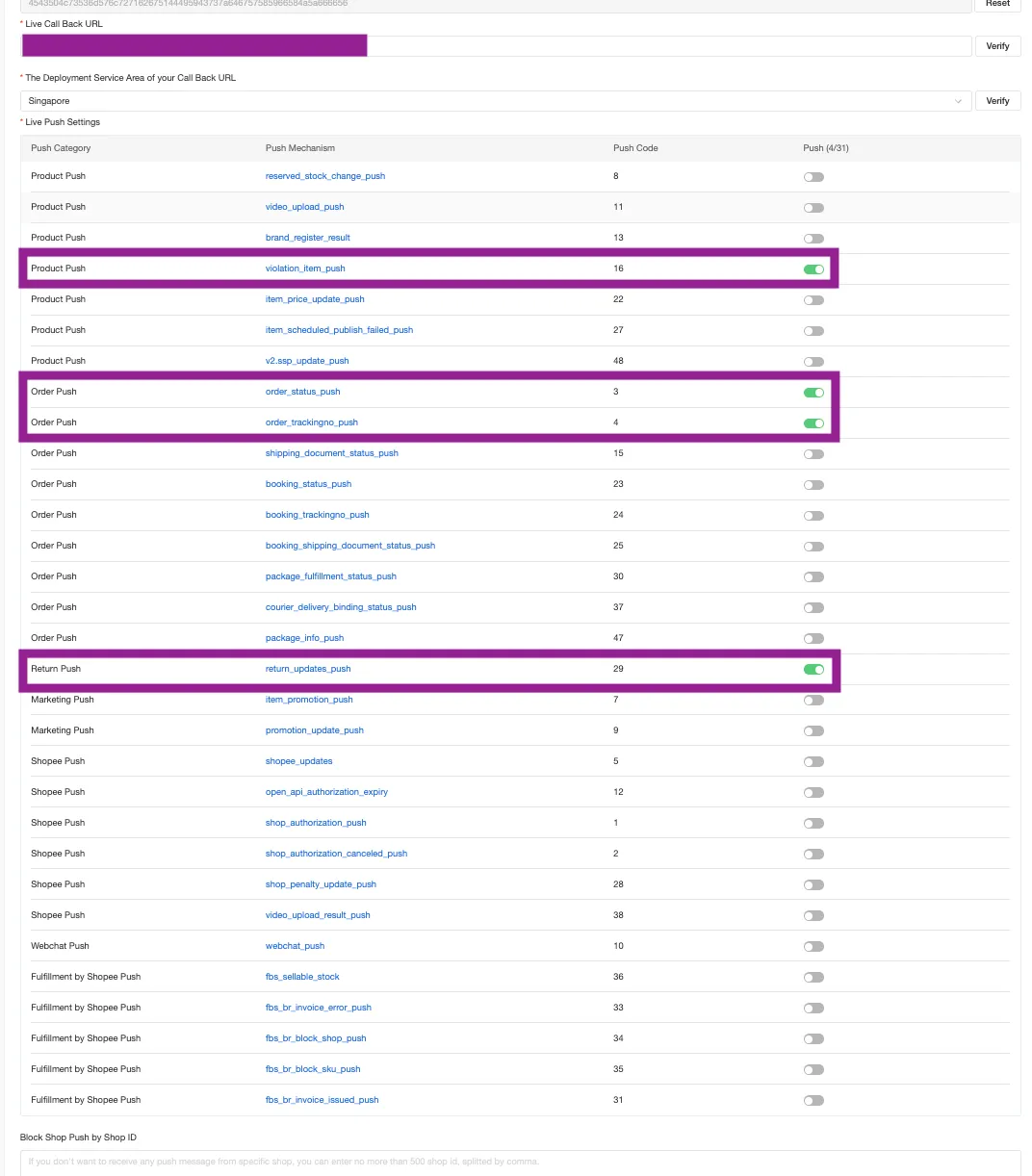
Turn ON the toggle switches for the following 3 core push events, then click Save at the bottom:
order_status_push: Notifications for new orders and order status changes.order_trackingno_push: Notifications for local tracking number generation and logistics updates.return_updates_push: Notifications for buyer return/refund requests and disputes.
Next Steps
Your Shopee Developer Console setup is complete! Now it is time to register your keys in the Prism Order onboarding screen.
👉 Next: Register API Keys in Prism Order